 Mary
Mary
Workflow Automation for Repair Shops: No-Code Workflows That Save Hours Every Week (2026)
Save hours weekly with copy-ready automation for updates, approvals, scheduling, payments, and reviews.
At some point, most repair shop owners realize they are running two businesses. One is the actual repair work. The other is a full-time job of answering the same calls, sending the same messages, and tracking down the same information that went missing somewhere between the intake form and the invoice.
The second job is the problem. It is not hard work, exactly. It is just relentless, and it happens whether you are slammed or slow. With workflow automation, that second job is handled by rules running in the background. This guide covers the essentials, getting started steps, and ten ready-to-use workflows.
What Workflow Automation Means for Repair Shops
The "Automation Layer" — What It Is and What It Isn't
Stop thinking of automation as software. Think of it as a rule. When X happens, do Y. Simple as that.
A customer submits a repair request online. A job record gets created. A confirmation goes to their phone. You did none of that, and you did not need to. The rule ran. That sequence of connected actions is what people mean by the automation layer.
It is worth being clear about what it is not. It is not replacing technicians. It is not making judgment calls. It handles the purely mechanical parts of the job. Every new lead triggers the same outcome. The message is sent on cue, and the task is created without fail. Picture a coworker who does exactly what you say, never forgets, and keeps working at 3 am.
Where Shops Lose Time Without Automation
The places where hours disappear are pretty consistent across shop types, whether you are fixing phones, appliances, cars, or doing field service:
- New inquiries that come in while someone is on another call and never get followed up on
- Estimates that sit for three days because no one sent a nudge
- Customers who call to check on their repair because they have not heard anything
- No-shows that could have been prevented with a reminder sent the day before
- Overdue invoices that only got chased when someone happened to notice
- Parts reordered incorrectly or too late because the trigger was a person remembering
- A shared spreadsheet doing the job of scheduling software badly
None of those are complicated problems. They are just dropped handoffs between steps, and automation is built to catch them.
What to Automate First: Quick Wins vs. Later Wins
Review your early morning tasks. Status check calls, estimate follow-ups, or adding customers from forms. These are the easiest places to start automating.
For most shops, the right starting point is appointment reminders, status updates, and estimate nudges. They are easy to build, deliver results fast, and keep things simple operationally.
After the basics are working without issues, start exploring more involved automations like inventory reorder triggers, priority routing for high-value work, and data syncing between tools. It is worth building, but not on day one.
No-Code Automation Platforms: Make and Zapier
Make vs. Zapier — How to Choose
Both platforms connect your tools and let you set up automated actions between them. No coding required for either. The real difference comes down to what you are trying to build.
Zapier offers the quickest path to your first automation. The interface is simple, templates handle common scenarios, and you can have something working the same day.
When workflows become more complex, Make is the better fit. It handles multi-step processes, branching logic, and sequences across multiple apps. Both tools are valid. If you want the fastest setup, start with Zapier. If you need multi-step logic and branching, Make is usually a better fit.
What You Can Automate with Make or Zapier in Orderry
The platforms connect to Orderry in different ways, and it helps to understand what each one actually does before you start building.
With Zapier, the main function is getting data into Orderry from other tools. Here is a concrete example: a customer fills out a Google Form about a cracked screen, and Zapier automatically creates a customer record and a lead inside Orderry. No one copied anything.
The Zapier integration guide covers the setup. With Make, you connect via API key and build scenarios that can go in multiple directions based on your conditions. More flexible, but a bit more to set up. The Make integration guide walks through it.
What convinced me to choose Orderry was that it didn’t feel like generic software. It was clearly built for companies like mine, with features designed for work orders, field technicians, inventory control, and reporting. I felt like I wasn’t just buying another system, but adopting a tool built specifically for the way we work.

Practical things shops actually build with these platforms:
- Form submissions from Typeform, Google Forms, or Facebook lead ads get turned into Orderry leads without any manual step
- A callback task appears automatically when a new lead comes in, so the follow-up window does not slip
- Team notifications fire when a high-priority job lands, so response time stays tight
- New jobs log to a Google Sheet automatically, so someone is not maintaining a separate tracker by hand
First workflow: one trigger, one action. Confirm it runs reliably, and then add the next one.
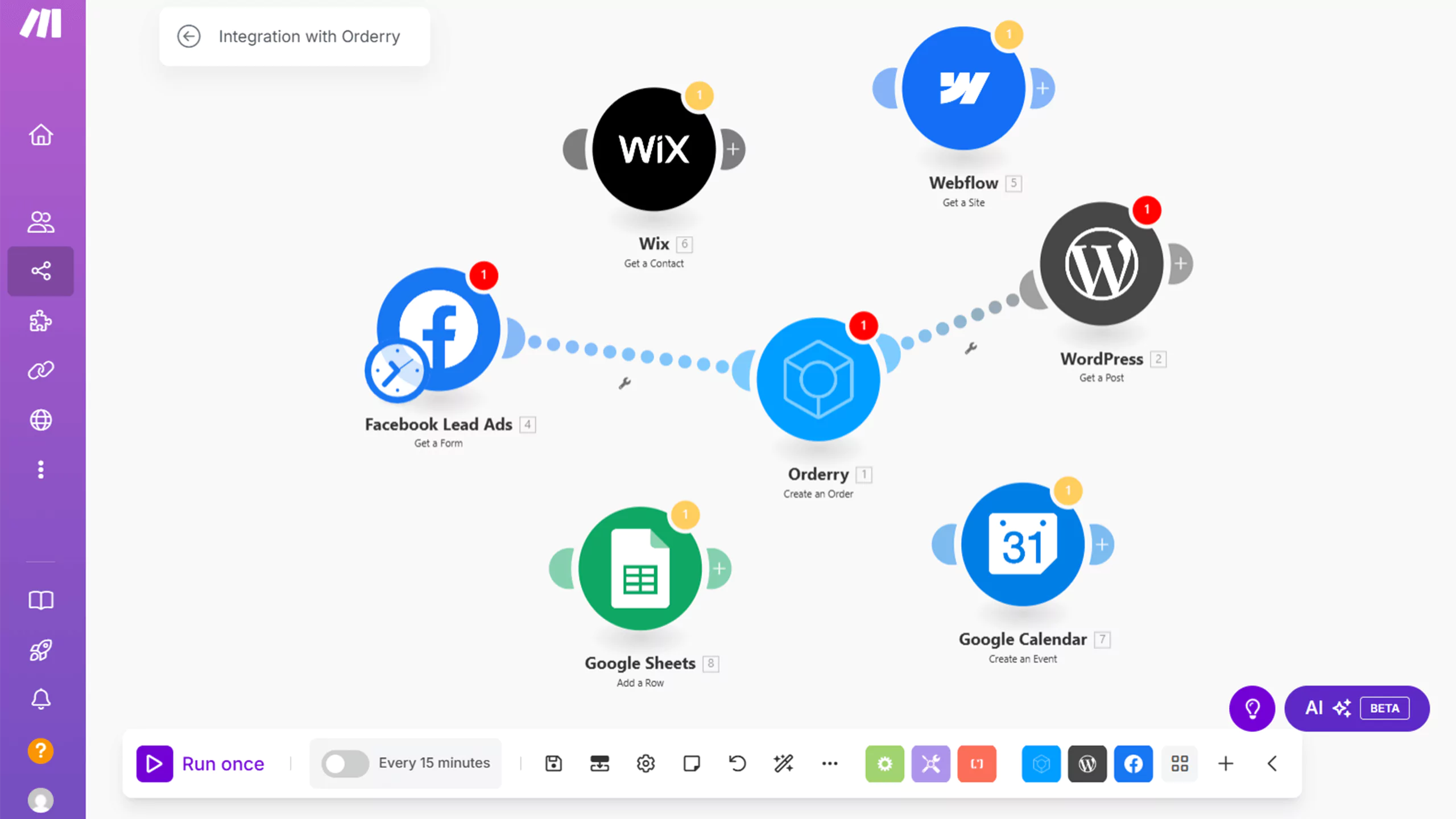 Example of workflow automation with Make
10 Copy-Ready Automation Workflows for Repair Shops
Each of these is formatted as Trigger, Action, Result. All of them work in Make or Zapier.
- New repair request submitted via Google Form → Create customer and lead in Orderry → Callback task assigned to your team automatically.
- Job status changes to "Ready for Pickup" → Customer gets a text or email → The "is it ready yet?" calls mostly stop.
- Estimate not approved after 48 hours → Follow-up message goes to the customer → More estimates actually close, without manual chasing.
- Appointment confirmed → Reminder text goes out 24 hours before → Fewer no-shows, fewer empty slots.
- Invoice unpaid past the due date → Overdue reminder sent automatically → Better collection rate without anyone making awkward calls.
- New Typeform inquiry submitted → Lead created in Orderry → Internal callback task assigned with a due time.
- New customer added in Orderry → Contact created or updated in Google Contacts → Their name shows up correctly when they call.
- New job created in Orderry → Row added to Google Sheets → Running KPI log that builds itself.
- Part count drops below threshold in Orderry → Internal reorder task created → Parts get ordered before a job is stuck waiting on them.
- Job marked complete → Review request sent to customer → Steady review volume without relying on anyone remembering to ask.
Start with two or three that match whatever is costing you the most time this week.
Automating the Core Operations: Orders, Scheduling, Inventory, and Communication
Customer Updates That Reduce Inbound Calls
A certain number of incoming calls to any repair shop are the same call. "Hi, just checking on my device." It is not a complaint. It is a gap. The customer has not heard anything, so they call to find out. When job stage changes trigger automatic updates, most of those calls go away on their own. Customers are not left wondering.
For front-desk staff who spend a chunk of their day answering those questions, the effect is noticeable pretty quickly. Customer communication system that sends updates at each stage handles all of this without adding anything to anyone's workload.
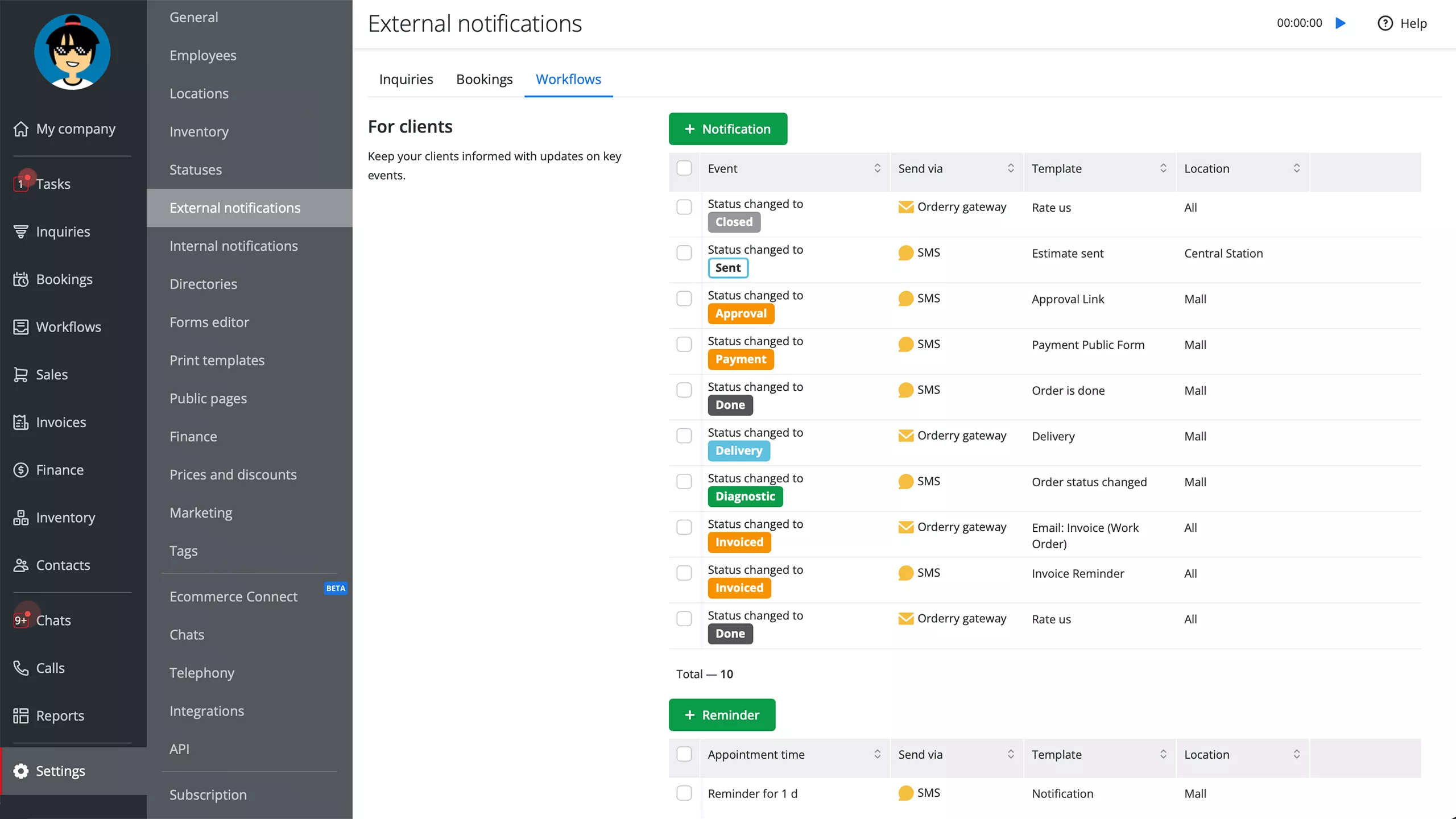 Automated reminders and status updates in Orderry
Scheduling Automation That Prevents Double-Booking
No-shows are expensive in a way that is easy to underestimate. The slot is blocked, the technician is ready, and nobody shows up. Then the rest of the day has to fill that gap. Most of the time, the customer did not forget on purpose. They just never got a reminder.
Connecting reminders to your job scheduling software means confirmations go out immediately when someone books, and a follow-up goes out the day before. Customers show up more consistently. The schedule stops having the kind of gaps that only show up because the reminder system was a person.
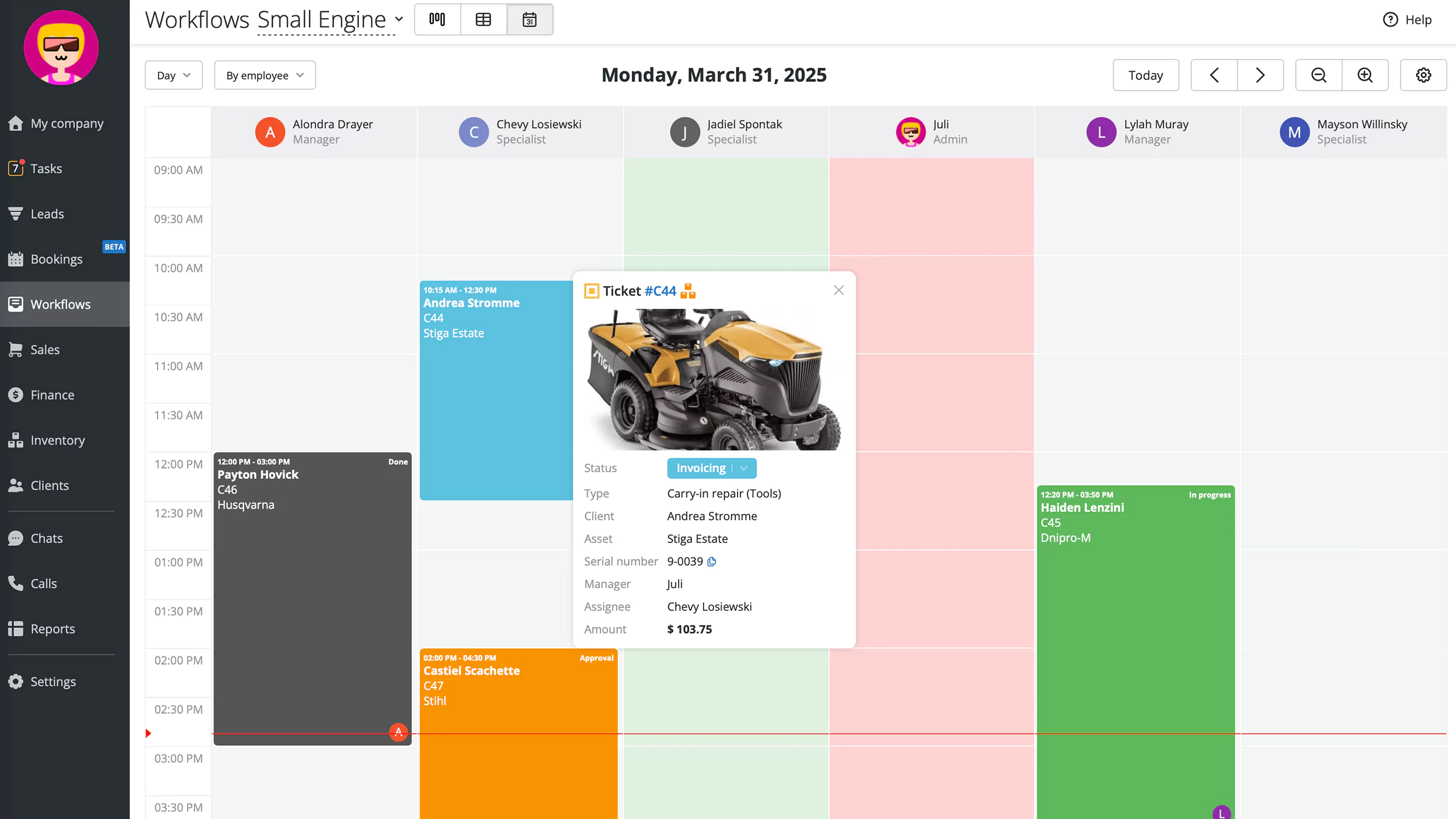 Job scheduling in Orderry's small engine repair software
Work Orders That Stay Clean from Intake to Closeout
A work order that starts with missing information is a problem that follows the job all the way through to the end. The technician has to stop and ask, and the customer has to be called back. The job sits while someone tracks down what should have been captured at intake.
Automation with repair shop software can prompt for the right fields when a job is created, move orders through stages without relying on someone to manually push them forward, and flag anything that has been sitting without a status change for too long. Work order software with automation rules built in reduces the amount of time anyone spends chasing job progress.
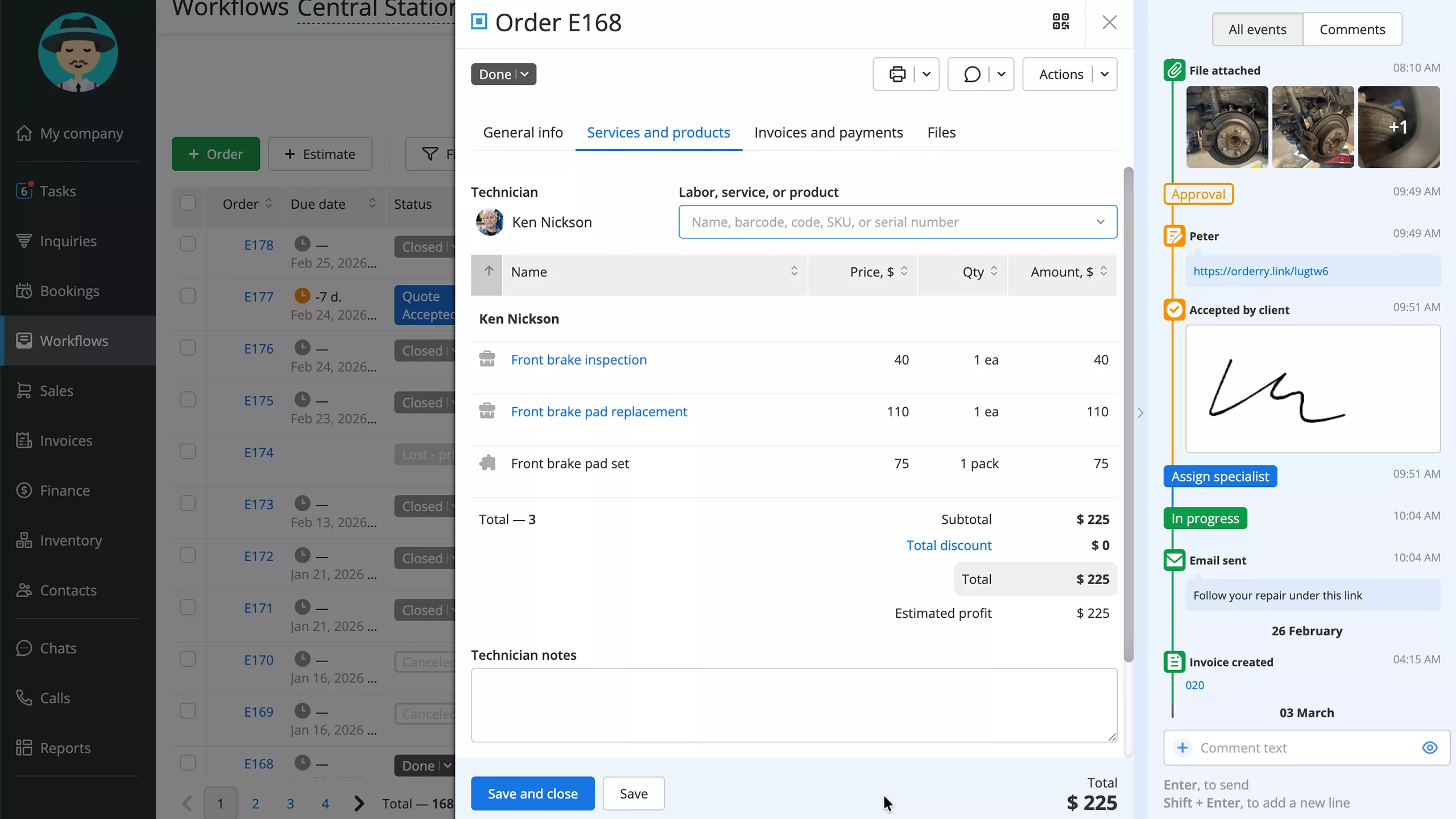 Event feed with all changes in work order
Parts Tracking and Reorder Triggers
Running out of a part mid-repair is one of those situations where the customer experience falls apart quickly. The job stalls. The customer gets an update they did not want. And if the reorder process still depends on a person noticing that a shelf is getting low, it will keep happening.
Inventory management software with automatic reorder triggers takes that dependency off a person's plate. When a part drops below the threshold you set, a task fires. The order gets placed. Nobody has to run a manual inventory check to catch it.
Want to see what this looks like in your workflow? Book a demo and walk through one real job — from lead intake to work order updates and closeout.
How to Start in 30 Minutes and Prove ROI
A Minimal 30-Minute Setup
Many people try to automate everything at the same time. The result is a tangled set of workflows that quickly becomes hard to manage and diagnose.
A more useful approach: choose one customer-facing automation, the appointment reminder is the easiest starting point, and one internal one, like the new lead to callback task. Build both in Zapier or Make, run them for two weeks, and then look at two numbers. Did the no-show rate move, and is lead response time faster? That is the whole experiment.
When those work, you have proof they work. And that proof makes every conversation about expanding the automation setup a lot shorter.
KPIs to Track
Once the first workflows are running, these are the numbers that tell you whether they are doing anything:
- Response time from new inquiry to first contact
- Estimate-to-approval time
- No-show rate before and after adding reminders
- Average job cycle time from intake to completion
- Invoice close rate and overdue invoice count
- Monthly review volume
A Google Sheet updated once a week handles this fine. No dashboard is required.
Frequently Asked Questions
Does Orderry have built-in automation without Make or Zapier?
Yes, Orderry includes built-in automation rules for status updates, notifications, and task assignments — no third-party tools required for the basics. Make and Zapier extend what’s possible when you want to connect Orderry with outside tools like Google Forms, Typeform, or your CRM. Most shops start with the native rules and add Make or Zapier later as their workflows grow.
Does Orderry integrate with Make?
Yes, via API key. You build scenarios in Make that define the trigger and the action, and they can handle multi-step or conditional logic in ways simpler tools cannot. The Make integration guide has the full setup process.
Does Orderry integrate with Zapier?
Yes. Zapier is typically used to push data into Orderry from outside sources, like creating a new customer or lead from a form submission. The guide walks you through getting your first Zap up and running.
What should I automate first?
Reminders and status updates. They take less than an afternoon to set up, and the results usually show within a week or two. No-show rate goes down. The "is it ready?" calls go down. Once those are running, estimate follow-ups and invoice reminders are the logical next step.
Will automation annoy my customers?
Not if the messages are ones they actually need. A booking confirmation, day-before reminder, and ready-for-pickup alert are what customers expect. The frustration comes from repeated, overlapping, or mistimed messages. Stick to moments that matter, and automations land smoothly.
Do I need technical skills?
No. Make and Zapier are tools made for non-developers. If you can describe what should happen clearly in plain language, you can set it up yourself. For most basic workflows, the entire process usually takes an hour or less to complete.
Conclusion
The shops that actually get traction with automation are not the ones that planned the biggest rollout. They are the ones that picked something small and annoying, fixed it, and then moved to the next thing.
One automation that reliably saves your front desk twenty minutes a day does more for your business than six workflows that sort of work and occasionally cause confusion.
When you are ready to see what tools connect to your setup, the integrations hub is where to start. For shops looking to go further with AI-assisted features layered on top, the AI tools section covers what is already built into the platform.